
🏦 Managing Your Accounts in Moneytor
Accounts are the foundation of your Moneytor experience, allowing you to track your financial position, monitor transactions, and gain insights into your wealth. This guide covers everything you need to know about the different types of accounts you can add and how to manage them.
Understanding Account Types in Moneytor
In Moneytor, every account you add belongs to a specific Account Type (e.g., Savings Account, Home Loan, Share Portfolio). These types determine whether an account is an Asset (something you own) or Debt (something you owe), which is essential for accurate net worth tracking and reporting.
To give you maximum flexibility, Moneytor allows you to add accounts in three main ways:
- CDR-Connected Accounts: The most popular method. Securely link to your bank via the Consumer Data Right (Open Banking) for automatic updates.
- CSV-Upload Accounts: For banks not on CDR, you can add an account and manually upload your transaction history using a CSV file.
- Manually-Tracked Accounts: For other assets and debt (like property, vehicles, or crypto), you can create an account and update its balance by hand.
This guide will walk you through each method and list the specific account types you can track.
Method 1: Connecting via CDR (Open Banking)
This is the most secure and convenient way to track your finances in Australia. Moneytor uses the government-regulated Consumer Data Right (CDR) framework to connect directly to your financial institutions. This allows for the automatic and secure syncing of your account balances and transactions with your explicit consent.
How to Connect a CDR Account
- Click Add Account and choose your bank from the list of supported institutions.
- You will be redirected to your bank’s official and secure portal to log in and authorise the connection. Moneytor never sees or stores your banking credentials.
- Choose which specific accounts (e.g., your savings account, credit card) you wish to connect.
- Review and provide your consent. You are always in control and can revoke access at any time, either from within Moneytor or your banking app.
Once connected, Moneytor will automatically import your data and keep it regularly updated.
Screenshot Placeholder: CDR Connection Flow
Supported CDR Account Types
You can connect a wide range of official account types through CDR. The most common ones include:
Bank Accounts (Transaction & Savings)
This includes all accounts where cash is deposited and is accessible to you, commonly known as Transaction Accounts, Savings Accounts, or Current Accounts.
Credit & Charge Cards
All lending products that provide a flexible line of credit accessed through the use of a card.
Residential Mortgages
Lending products for the purpose of purchasing or renovating a residential property. This includes both owner-occupied and investment property loans.
Personal Loans
This grouping includes all types of general-purpose personal lending.
Overdrafts
Lending that allows for the loan amount to be withdrawn, repaid, and redrawn again in a flexible manner.
Term Deposits
All accounts where cash is deposited for a set time period with restrictions on when funds can be withdrawn.
Many other account types are also supported, including Business Loans, Leases, Margin Loans, Travel Cards, and Trade Finance, depending on what your financial institution offers via CDR.
Method 2: Accounts via CSV File Upload
If your financial institution is not yet on the CDR network, or if you simply prefer to have manual control over your data, you can easily add an account and upload your transaction history using a CSV (Comma-Separated Values) file.
How to Add an Account via CSV
- Click Add Account and select the Manual Bank Account or CSV Upload option.
- Choose your bank from the list. We provide templates for many major Australian banks like ANZ, Commbank, NAB, and Westpac to make the process easier. If your bank isn’t listed, you can use the generic “Other” option.
- Enter your account details, such as a name for the account and its opening balance.
- Upload your CSV file. Moneytor will guide you through mapping the columns (e.g., Date, Description, Amount) from your file to ensure the data is imported correctly.
- Review the imported transactions and confirm to add them to your account.
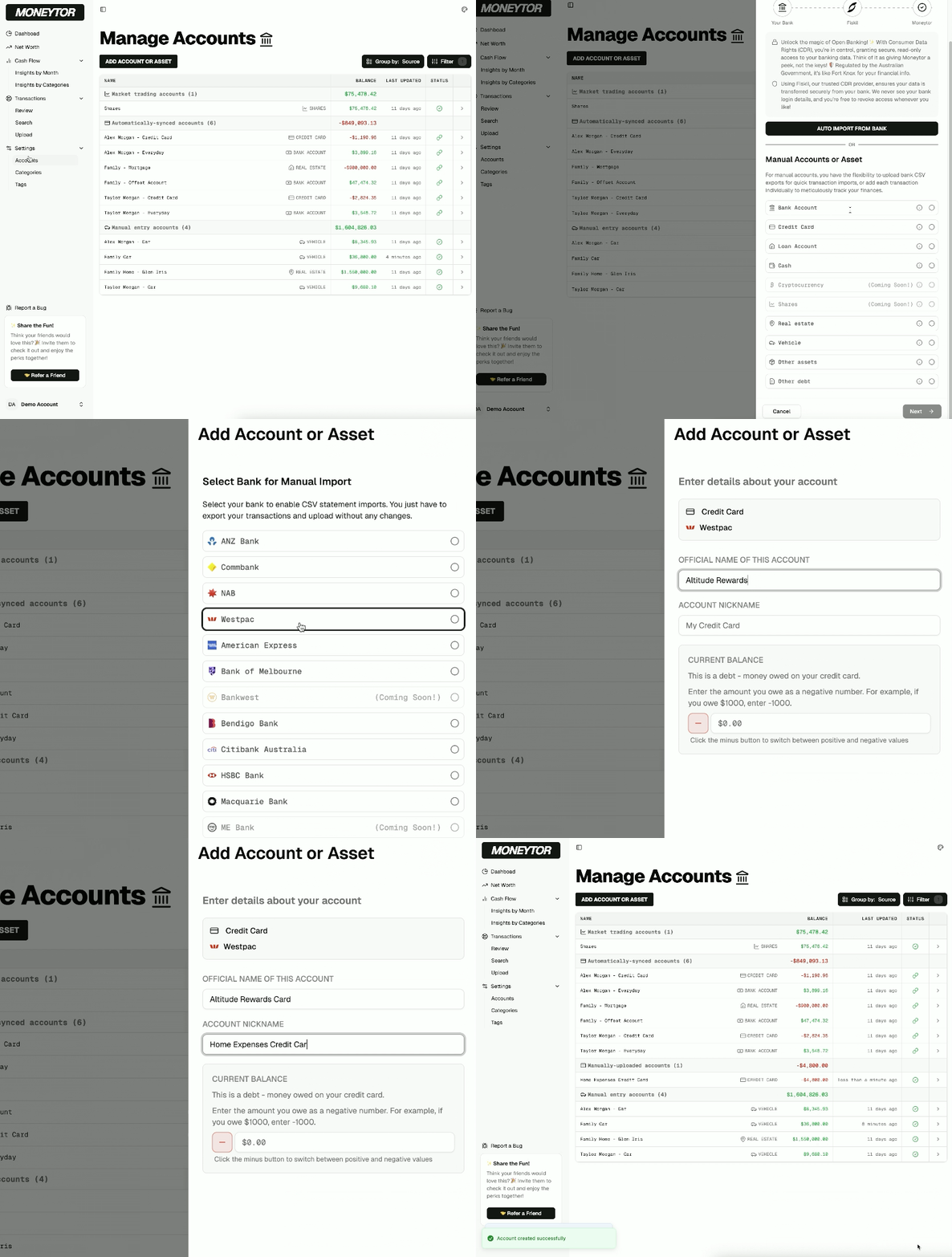
Supported Account Types for CSV Upload
This method is best suited for standard banking products where you can get a transaction export. The supported account types are:
- Bank Accounts (Transaction & Savings)
- Credit Cards
- Loan Accounts
Important Notes on File Uploads
- Duplicate Detection: Moneytor automatically detects and helps prevent duplicate transactions from being imported, so you don’t have to worry about double-ups.
- Secure Handling: For your security, your uploaded CSV files are processed for the import and then immediately and permanently deleted from our servers.
Method 3: Manually-Tracked Accounts
To get a complete picture of your net worth, you need to track assets and debt that don’t have a standard transaction feed. This is where manually-tracked accounts are essential. Use this method for items like property, vehicles, and investments, where you periodically update the balance yourself.
How to Add a Manually-Tracked Account
- Click Add Account and select the Other Account or Manual Account option.
- Choose the specific Account Type you want to add from the list.
- Give your account a descriptive name (e.g., “Family Home,” “Tesla Model Y,” “CommSec Share Portfolio”).
- Enter its current balance or value and the date.
- Save the account. It will now appear in your accounts list and be included in your Net Worth calculation.
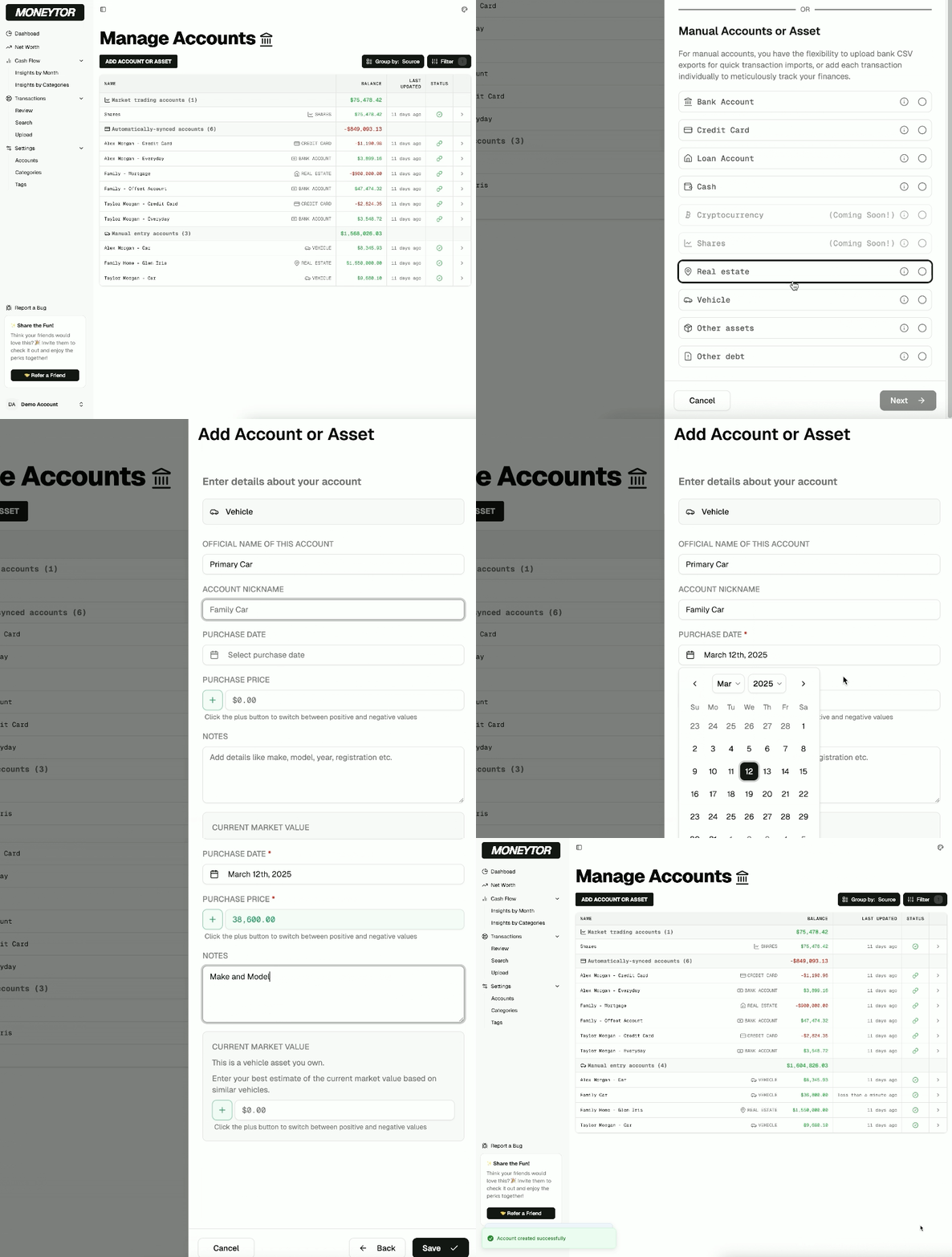
Supported Account Types
Assets (What You Own)
- Real Estate: For tracking property-related assets, like your home, an investment property, or land.
- Vehicle: For managing the value of your car, motorbike, or any other vehicles you own.
- Shares: For managing your investments in company shares and tracking their portfolio value over time.
- Cryptocurrency: For tracking your cryptocurrency holdings, such as Bitcoin, Ethereum, or other digital assets.
- Cash: For managing transactions made with physical cash—perfect for keeping track of your wallet spending.
- Other Assets: For tracking valuable assets that don’t fit into other categories, like jewellery, art, or collectibles.
Debt (What You Owe)
- Other Debt: For tracking debts or obligations not covered by a regular loan account, like a personal loan from family or other borrowings.
Keeping Balances Up-to-Date
For these accounts, you can simply click “Edit Balance” at any time to record a new value. It’s good practice to update these balances monthly or quarterly to keep your net worth figure accurate.
General Account Management
Once your accounts are set up, you can manage them from the main Accounts page.
- Edit or Archive: You can update account details at any time. If you no longer use an account, you can Archive it to hide it from your main lists while preserving its transaction history.
- Balance History: View a chart of historical balances and trends for each account.
- Permissions & Security: Only users with Owner or Contributor roles can add, edit, or delete accounts. All sensitive data (like account numbers) is encrypted and masked in the user interface for your protection.
Best Practices for Managing Accounts
- Use CDR where possible for the most accurate and effortless experience.
- Regularly reconcile manual CSV accounts to ensure they match your bank statements.
- Keep asset and debt values updated for a true picture of your net worth.
- Archive, don’t delete. Archive old accounts instead of deleting them to preserve your financial history.
Frequently Asked Questions
Q: Is it safe to connect my bank using CDR? A: Yes. CDR is regulated by the Australian government and designed for security and privacy. You control what is shared and can revoke access at any time.
Q: What if my bank isn’t supported for CDR? A: You can still track your accounts by adding them manually and uploading transaction files (CSVs).
Q: Can I track my superannuation or mortgage? A: Absolutely! Use the CDR connection if your provider supports it, or add it as a “Manually-Tracked Account” and update the balance periodically.
Q: Who can see or edit my accounts? A: Only users with “Owner” or “Contributor” roles in your household can manage accounts.