
📚 Managing Categories & Category Groups
Categories and Category Groups are at the heart of how Moneytor helps you organise and make sense of your finances. This guide explains how they work, why they matter, and how you can manage them to fit your lifestyle. 🦘
The Basics: Understanding Categories and Groups
To start, think of Category Groups as the main folders for your finances. They represent the broad areas of your financial life, such as Income, Expenses, or Transfers.
Categories are the specific items that live inside those folders. They allow you to break down your finances into detail. For example, inside your “Expenses” group, you might have categories like “Groceries,” “Utilities,” and “Transport.”
To get you started, Moneytor creates a comprehensive set of default categories and groups when you first register. While you have the freedom to create an unlimited number of your own custom categories to perfectly match your lifestyle, it is highly recommended to use the default categories whenever possible. Our AI is trained to automatically assign transactions to these default categories, which will save you a significant amount of time and effort.
Using this structure is valuable because it gives you:
- Clarity: Instantly see where your money is going and coming from.
- Customisation: Tailor your categories and groups to fit your unique lifestyle.
- Powerful Reporting: Generate detailed reports and charts that help you spot trends and set budgets.
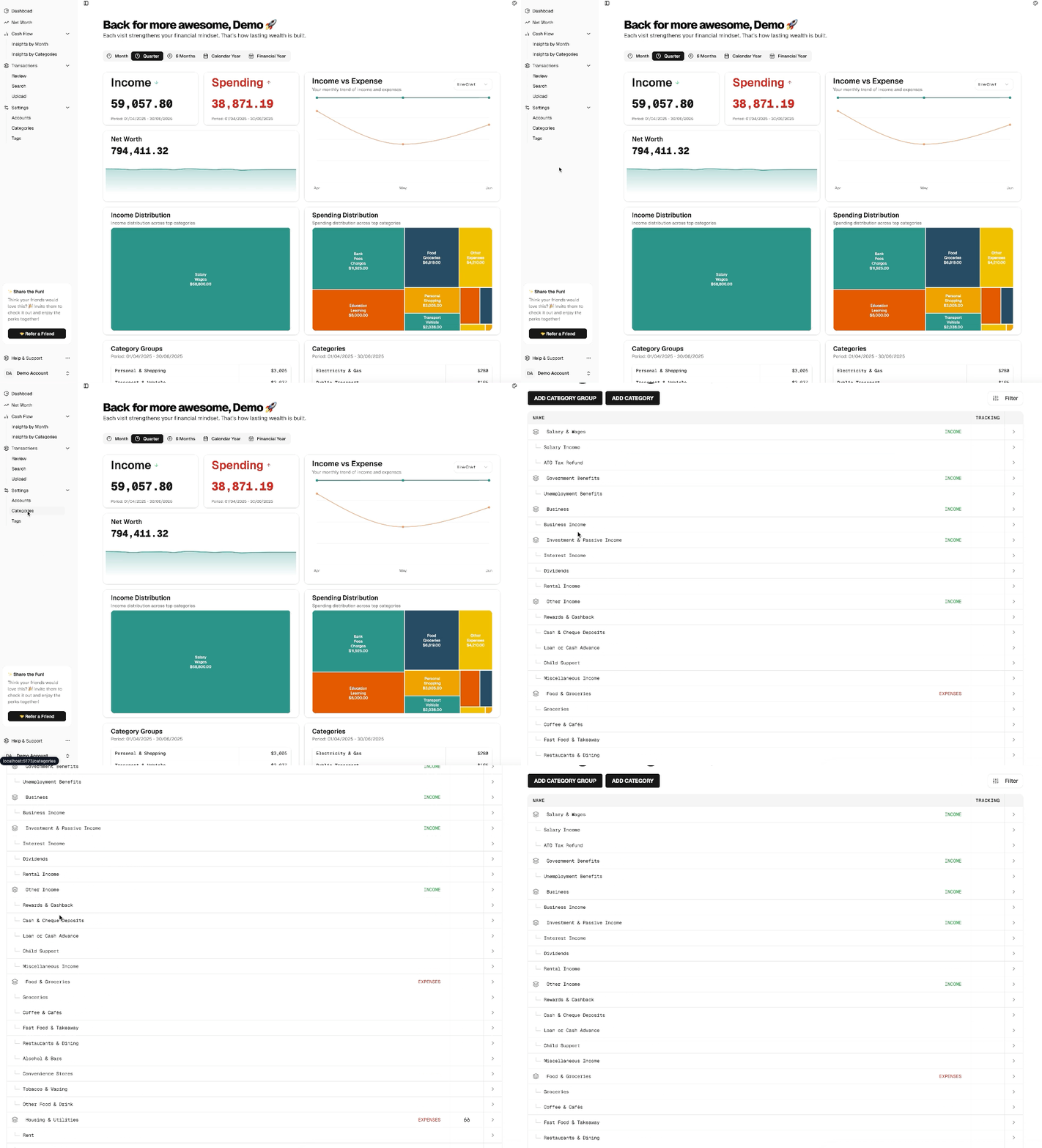
AI-Powered Auto-Categorisation
To save you time and effort, Moneytor uses a smart AI to automatically assign categories to your new transactions as they are imported. Here’s how it works:
- Smart First Guess: The AI is trained on our default category list, so it can make an intelligent guess for most common transactions (like categorising a payment to a supermarket as “Groceries”).
- It Learns From You: The system constantly learns from your manual changes. If you re-categorise a transaction, the AI will remember your preference for similar transactions in the future. Your choices are always preserved and take priority.
- Private to Your Household: Your categorisation model is unique and private to your household. The AI learns based only on your data, and this learning model is never shared with anyone else.
While the auto-categorisation is powerful, you always have full control to change or re-assign a category to whatever you see fit on the “Transactions” page.
Managing Your Categories and Groups
You can manage all your categories and groups from the Categories section in the main menu.
Adding, Editing, & Deleting
The process for managing both groups and categories is very similar. To keep your data organised and secure, only users with Owner or Contributor roles can perform these actions.
- To Add: Click the Add Category Group or Add Category button. For a group, you’ll give it a name and assign a type (Income, Expenses, or Transfers). For a category, you’ll give it a name and choose which group it belongs to.
- To Edit: Use the edit icon next to any item to update its name, change its group, or modify its tracking status.
- To Delete: Click the delete button in the edit drawer. You’ll always be asked to confirm before anything is deleted. Note: Deleting a group will also remove all the categories within it.
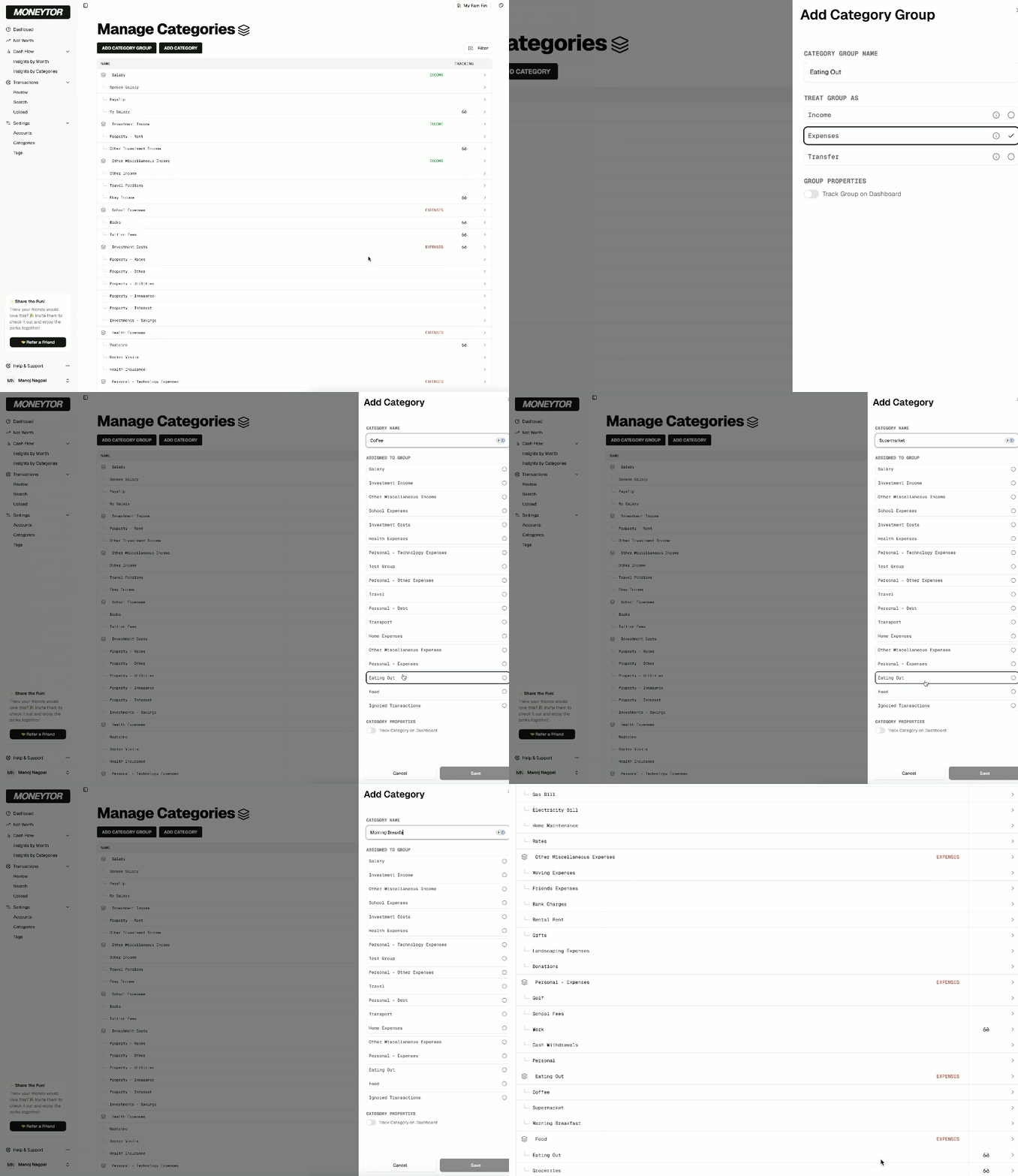
Tracking Key Categories and Groups
Tracking is a powerful feature that highlights the categories and groups that matter most to you.
You can enable tracking for any item in its edit drawer. Once tracked, it will appear prominently on your main Dashboard and in the Category Insights reports, making it easy to monitor your progress toward your financial goals.
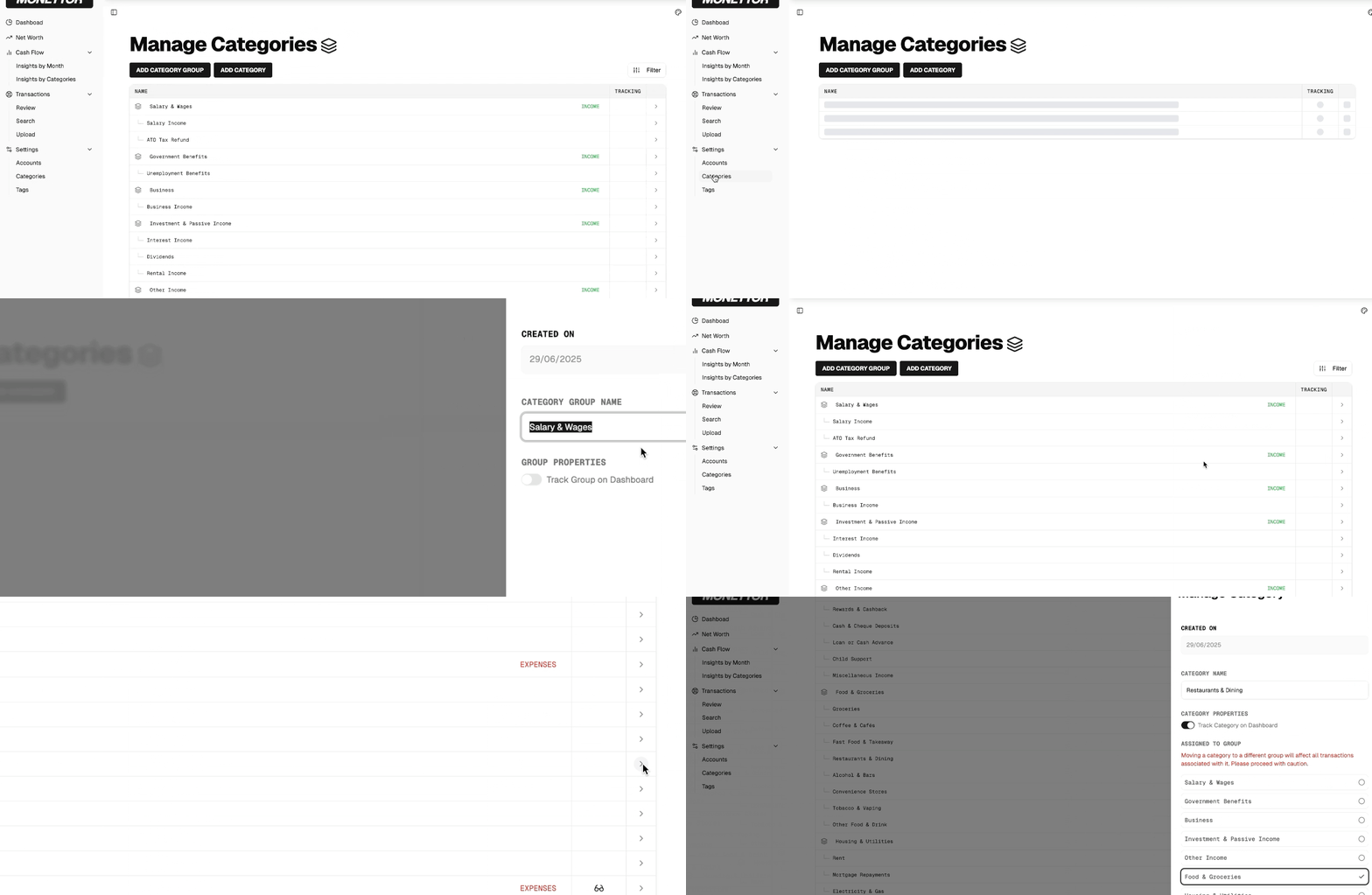
Best Practices
- Use clear, descriptive names for both groups and categories so everyone in your household understands them.
- Regularly review your categories and groups to keep them relevant and tidy.
- Track only the categories that are important to your financial goals — don’t be afraid to adjust as your needs change.
Frequently Asked Questions
Q: Can I move a category to a different group? A: Absolutely! Just edit the category and select a new group from the dropdown.
Q: What happens if I delete a group? A: All categories within that group will also be deleted. You’ll always be asked to confirm before this happens.
Q: Can I track only some categories in a group? A: Yes, you can choose to track at both the group and category level, giving you flexibility in what you monitor.
Q: Who can manage categories and groups? A: Only users with Owner or Contributor roles in your household can add, edit, or delete categories and groups.