
🔎 Search Transactions Guide
The Search Transactions page in Moneytor is your advanced tool for finding, filtering, and analysing transactions across all your accounts. It’s designed for users who want to go beyond simple monthly reviews and need to answer questions like “How much did I spend on groceries last quarter?” or “Show me all uncategorised transactions from my credit card.” This guide covers every feature available on the page.
Building Your Search: Using the Filter Panel
The heart of this page is the powerful filter panel, which allows you to build simple or complex searches to find exactly what you need. To begin, click the “FILTER TRANSACTIONS” button.
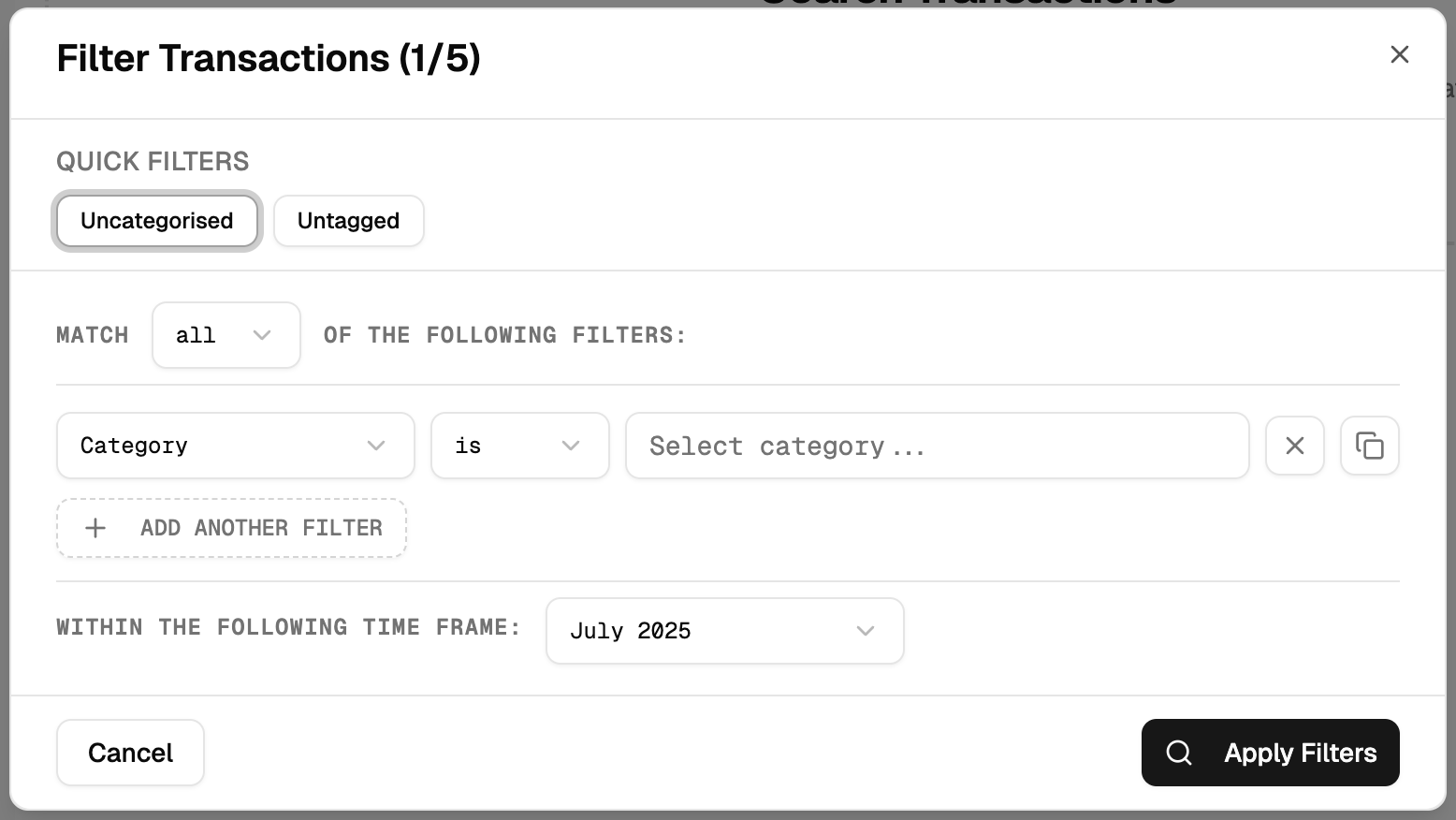
Inside the panel, you have several options:
Quick Filters
At the top, you’ll find quick-access buttons for the most common searches, such as finding all Uncategorised or Untagged transactions.
Creating Custom Filter Rules
This is where you can build a specific query.
- Match Type: First, choose whether you want to find transactions that match All (an AND search) or Any (an OR search) of the rules you are about to add.
- Adding Rules: Click “ADD ANOTHER FILTER” to create one or more rules. For each rule, you can filter by:
- Category or Category Group (with options to include or exclude).
- Tags.
- Account.
- Text Search (for descriptions, payees, or notes).
- Import Source (e.g., CDR, CSV upload).
- Status (e.g., transactions with errors or flagged as duplicates).
Selecting a Timeframe
At the bottom of the panel, you can define the time period for your search. You can choose from presets like This Month or Last 90 Days, or select a precise Custom start and end date.
Once you’ve set your rules, click Apply Filters to run the search. Your filter combination is also saved in the page URL, so you can bookmark specific searches for later use.
Working with Your Search Results
Once your search is complete, the results are displayed in a powerful, interactive table. Here’s what you can do with them.
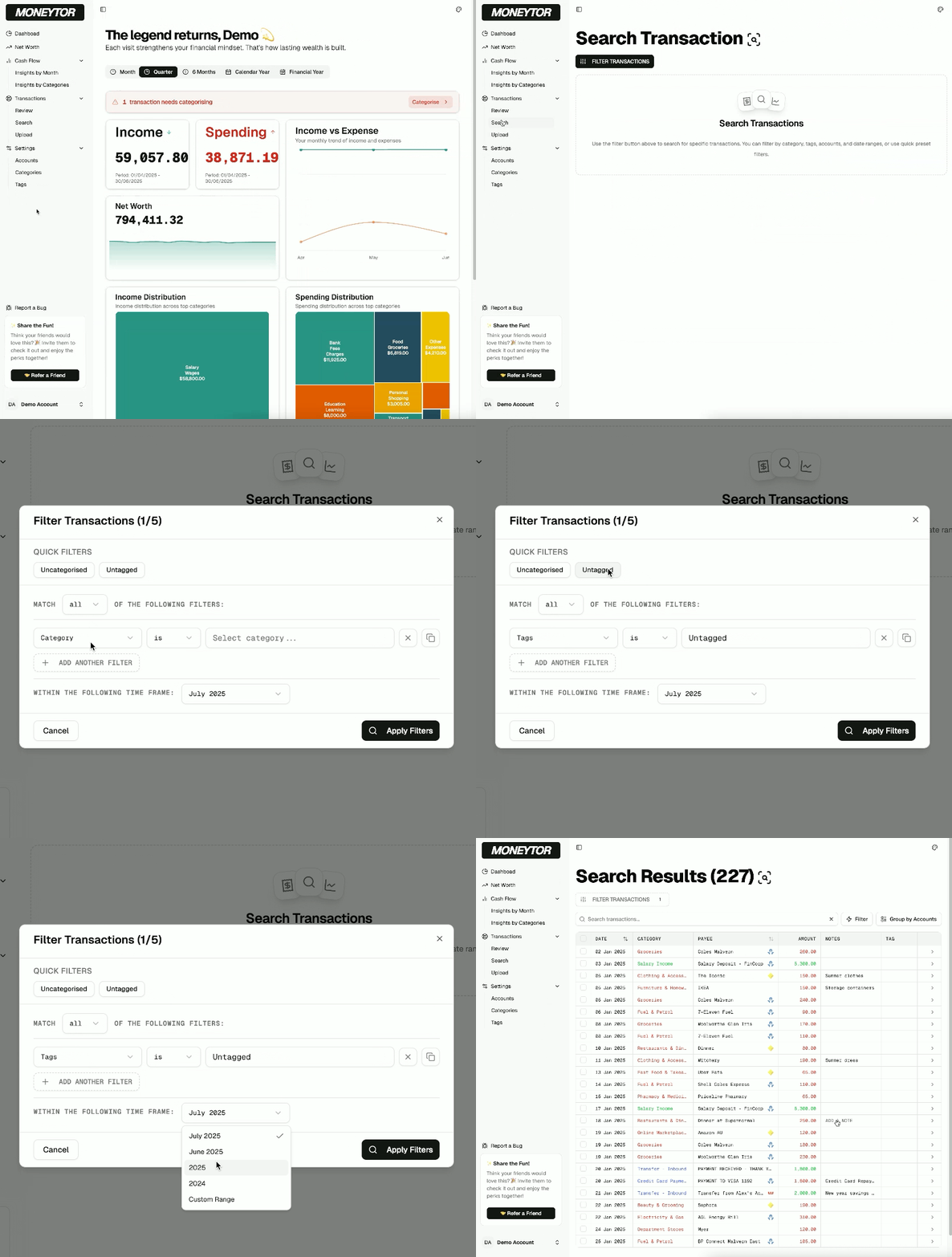
Understanding the Results Table
The table displays all transactions that match your filters, with a count of the total results in the heading.
- Columns: You can see sortable columns for Date, Category, Payee, Amount, Notes, and Tags.
- Indicators: Icons will appear next to transactions to indicate their source (e.g., a synced CDR account vs. a manual entry) or if they have a potential issue, like being a duplicate.
- Pagination: If your search returns a large number of results, you can use the pagination controls at the bottom to navigate between pages.
Editing a Single Transaction
You can manage individual transactions directly from the results table.
- Inline Editing: Click on the Category, Tag, or Notes cell for any transaction to edit it directly without leaving the page.
- Splitting a Transaction: For a single purchase that covers multiple categories (e.g., a supermarket bill with groceries and household goods), click the split icon. This allows you to divide the original transaction into multiple sub-transactions, each with its own category, amount, and notes.
Working with Multiple Transactions (Bulk Actions)
Use the checkboxes on the left to select multiple transactions and perform actions on them all at once. The bulk action buttons will appear at the top of the table once you select at least one item.
- Bulk Categorise: Assign a single category to all selected transactions.
- Bulk Tag: Add or remove tags from all selected transactions.
- Bulk Delete (Archive): Move multiple transactions to the archive. Archived transactions are hidden from your reports but can be restored later.
- Bulk Export: Download your selected transactions as a CSV file for your own records.
Best Practices
- Start Broad, then Filter: Start with a simple search (like a date range) and then add more filters to narrow down the results and find exactly what you need.
- Keep Your Data Clean: Regularly use the “Uncategorised” or “Untagged” quick filters to find and update transactions, which will make your reports more accurate.
- Use Bulk Actions to Save Time: When you have many similar transactions to update (e.g., from a holiday), use the bulk actions to categorise or tag them all in one go.
- Split Transactions for Accuracy: For large, mixed purchases, take a moment to split the transaction. This will give you a much more precise understanding of where your money is actually going.