
🏷️ Tags Feature Guide
Tags in Moneytor are custom labels you can assign to your transactions to help you organize, group, and track your finances with greater flexibility. Use them to group expenses for a specific project (like “Home Reno 2025”), track tax-deductible items, or highlight any spending pattern you want to monitor.
How to Use Tags
This guide covers the two main parts of using tags: applying them to your transactions and managing your list of available tags.
Applying Tags to Transactions
Once you’ve created your tags, you can assign them to your transactions in several places throughout the app.
1. On the Transactions Page When viewing your list of transactions, you can select one or more items and use the “Add Tag” option to assign existing tags. This is perfect for tagging items after they’ve been imported.
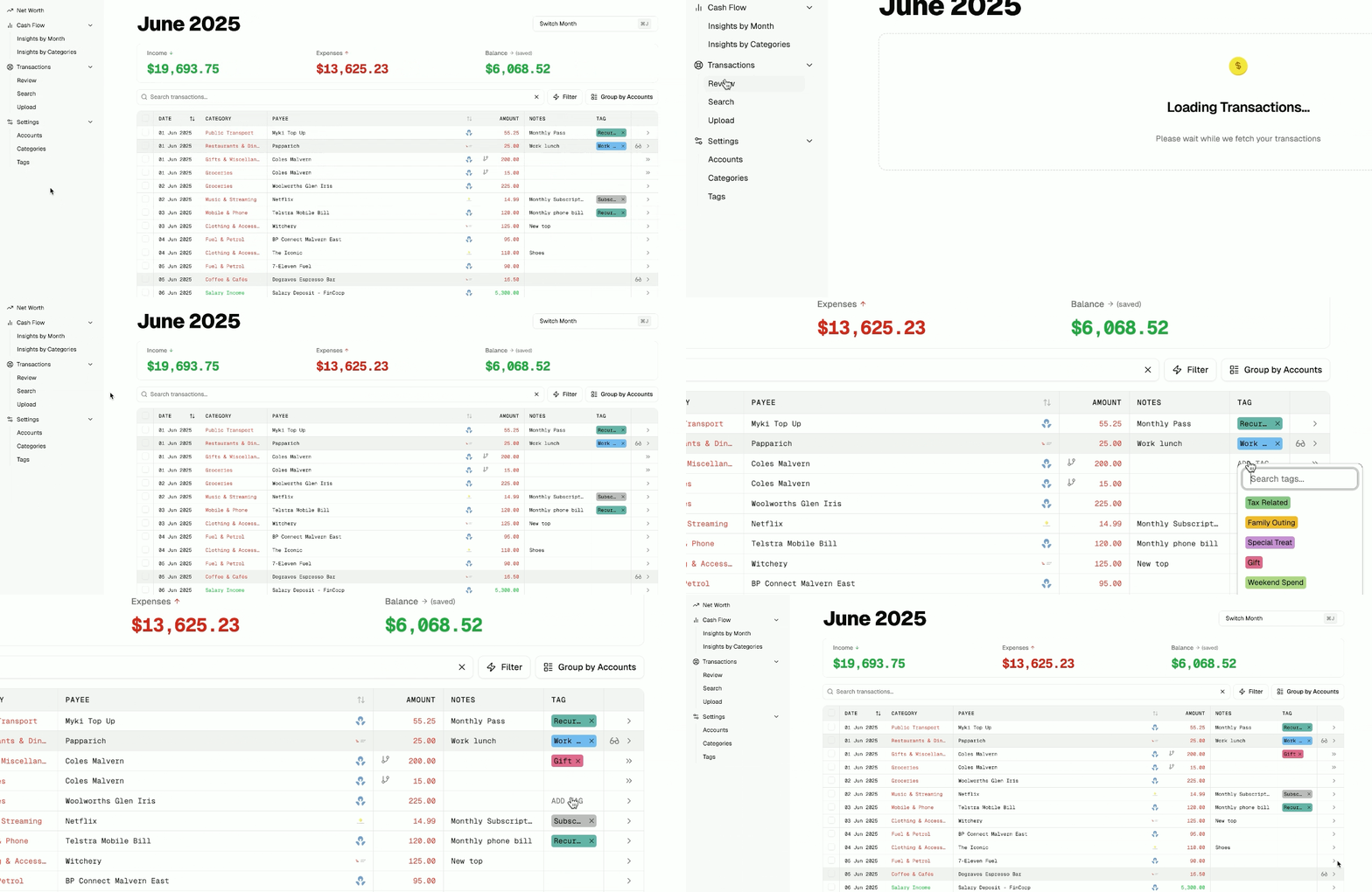
2. During a CSV Upload If you are manually importing transactions from a CSV file, the upload process includes a step where you can apply one or more tags to all the transactions contained in that file. This is great for bulk-tagging imported statements.
3. When Searchcing Transactions On the “Search Transactions” page, you will also have the option to assign tags before they are added to your main transaction list.
Managing Your Tags
The main Tags page is where you can view, create, and edit your list of available tags.
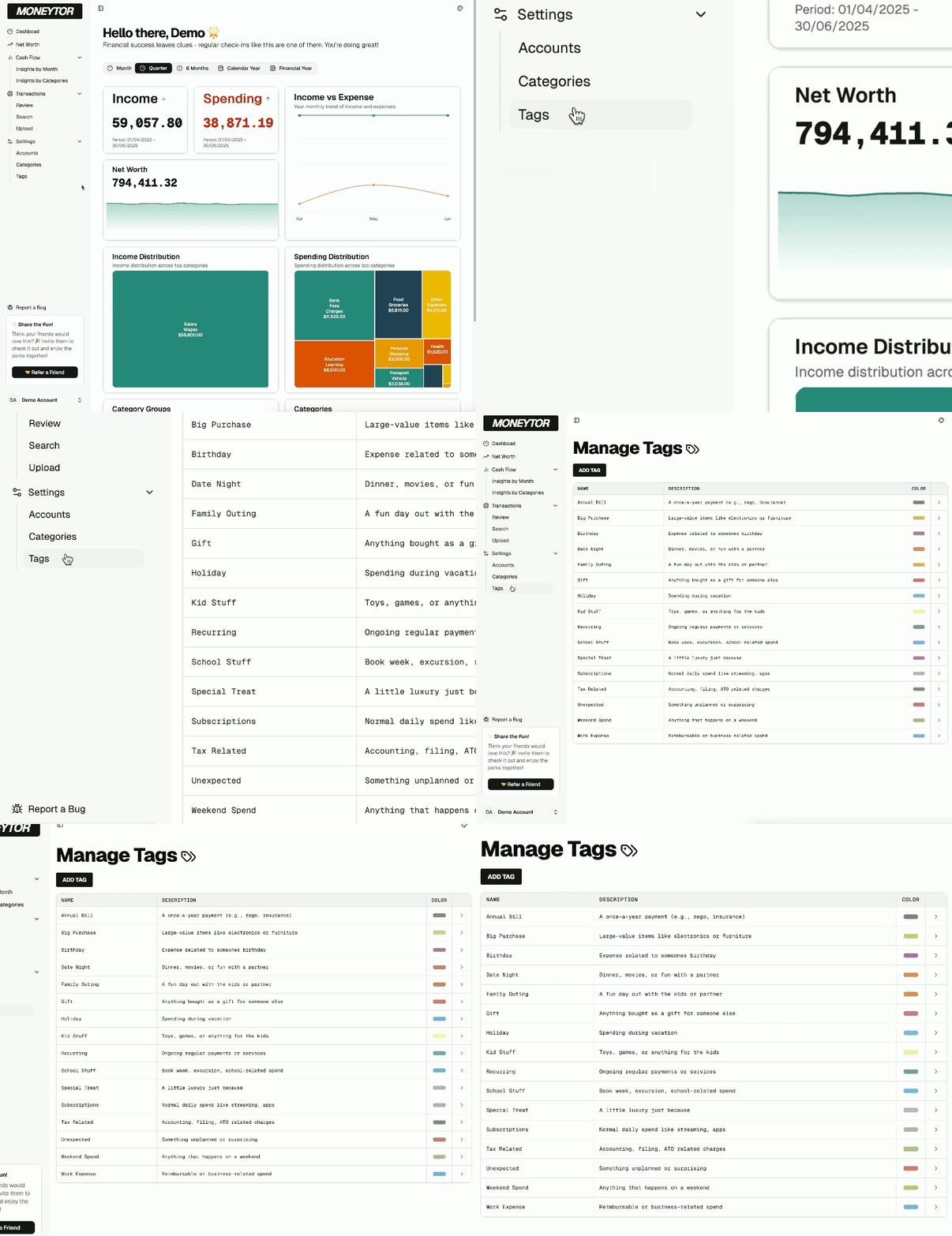
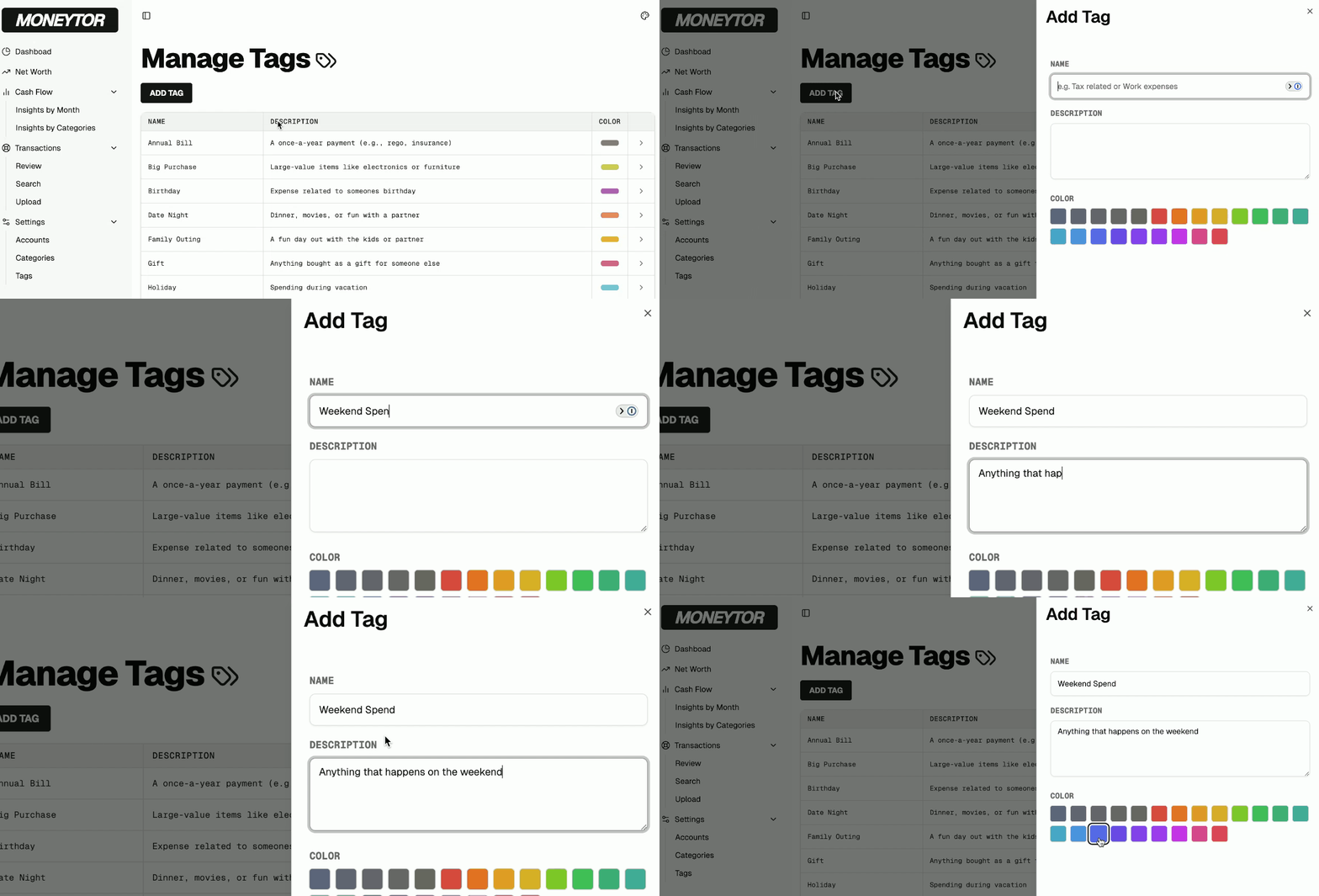
Adding a New Tag
- Click the Add Tag button.
- Fill in the tag name (max 25 characters), an optional description, and pick a colour for easy identification.
- Save to create your new tag.
Editing a Tag
- Click the edit icon next to any tag in the list.
- Update its name, description, or colour.
- Save your changes.
Deleting a Tag
- Click the delete button, which is usually found within the tag editor.
- Confirm the deletion in the pop-up dialogue. Note: This removes the tag from your list but typically does not remove it from transactions that have already been tagged.
Permissions
To keep your household’s data organized, only users with Owner or Contributor roles can create, edit, or delete tags. Users with a “Viewer” role can see and filter by tags but cannot manage them.
Tips & Best Practices
- Use Clear Names: Use short, clear tag names that you will easily remember (e.g., “Tax 2025,” “Vacation,” “Kitchen Reno”).
- Colour-Code: Assign distinct colours to your most important tags so you can spot them easily in a list.
- Review Regularly: Once in a while, review your tags list to delete old or unused tags to keep things tidy.
Troubleshooting
- Validation Errors: Remember that tag names must be unique and are limited to 25 characters.
- Permission Errors: If you are unable to manage tags, please check with your household’s “Owner” to ensure you have the correct role.