
🔄 Managing Your Transactions
The Transactions page in Moneytor is where you review, refine and reconcile every financial movement across all your accounts—whether pulled automatically via Open Banking (CDR), uploaded from your bank’s statements, or entered manually. Below is an in-depth guide to every control, option and workflow you’ll encounter as you keep your records accurate and up to date.
The Transactions View: An Overview
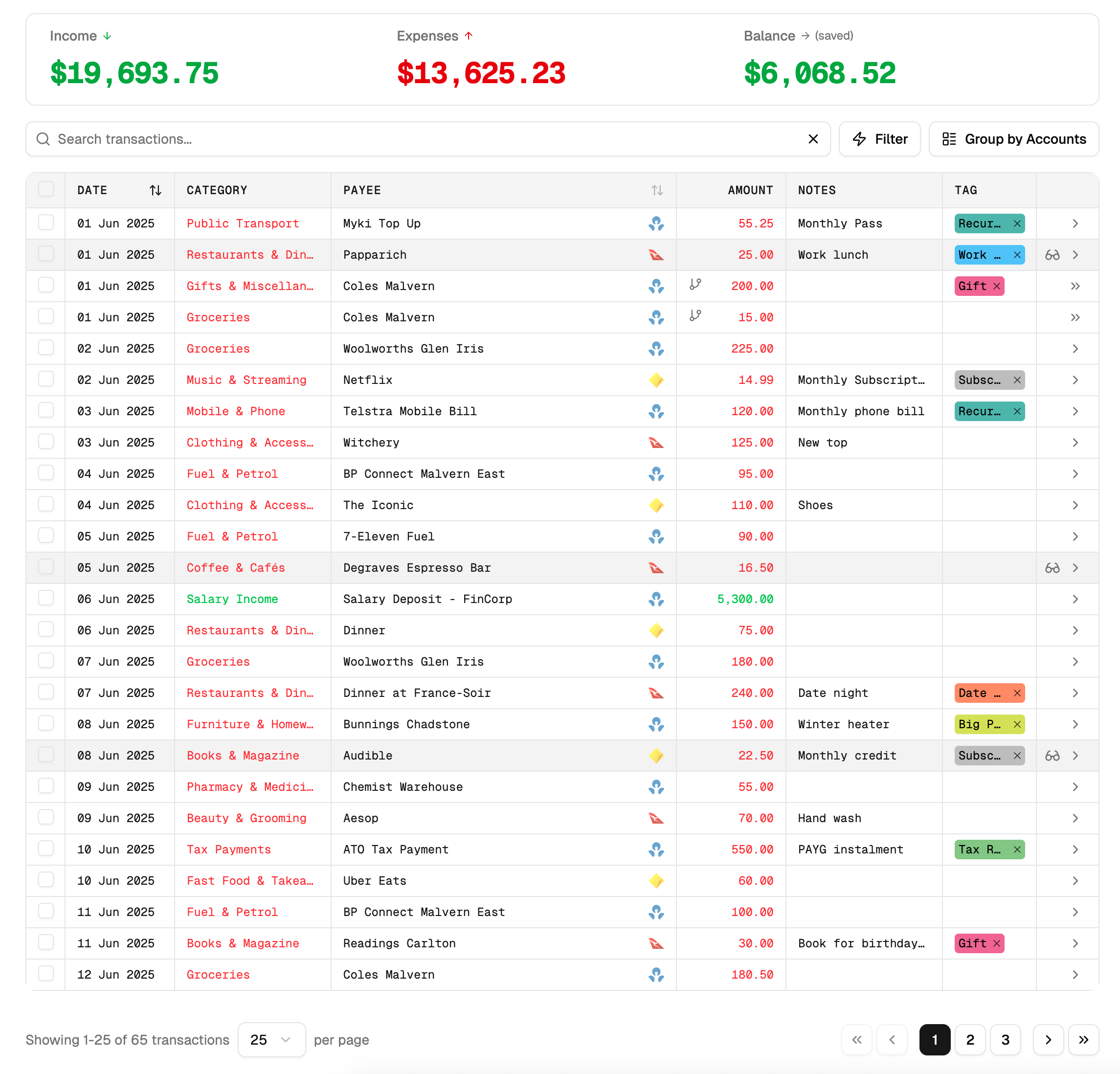
When you first land on Transactions, you’ll see a dynamic table listing every entry. This is your central ledger for all financial activity.
- A dynamic table lists every entry with columns for:
- Date (DD/MM/YYYY format)
- Description (merchant, payee, or custom label)
- Amount (positive for income, negative for expenses)
- Account (CDR-connected or manual account)
- Category (selected or suggested)
- Tags (zero, one or more)
- Notes (icon indicates presence)
- Source (CDR, CSV, manual)
- Import icons to indicate CDR sync, file-upload or manual entry.
- A status bar showing total transactions, current page and any active filters.
At the bottom of the table, you will find Pagination Controls:
- Rows per page: Choose 25, 50, 100 or 250.
- Page Navigation: Use First/Prev/Next/Last buttons, click page numbers, or enter a page number to jump directly.
Finding and Filtering Transactions
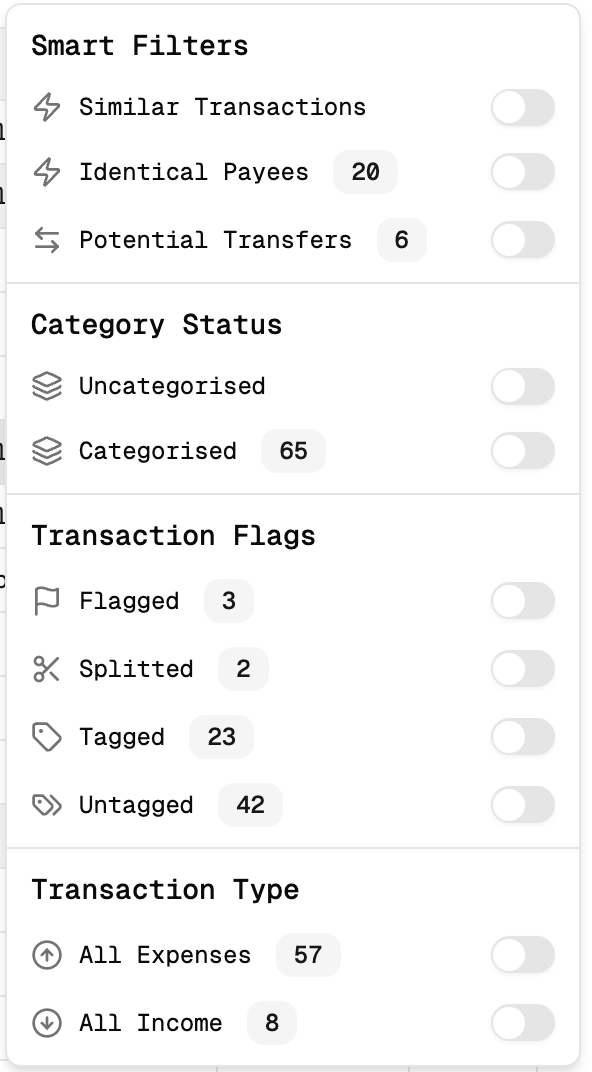
The filter bar sits above your table—use it to narrow down thousands of entries in seconds.
- Date Range: Use presets like Month, or open calendar pop-ups to select any start/end dates.
- Account: A dropdown lists all connected and manual accounts. Checkboxes allow for a multi-account view.
- Category & Group: A two-level filter lets you choose a Category Group (e.g. Expenses) then pick specific Categories (e.g. Groceries). An “Uncategorised” option is also available.
- Tags: Use a multi-select dropdown with search to filter by tags you’ve created. A “Has no tags” option is available.
- Import Source: Select from CDR, File Upload (CSV), or Manual.
- Text Search: A live search field matches the description, notes, or merchant fields as you type.
- Error & Duplicates: A toggle to show only flagged transactions (validation errors or duplicates).
Downloading Your Transactions
Once you’ve narrowed the table down to the transactions you’re after, you can download them as a CSV file for your own records, your accountant, or a spreadsheet.
- Apply the filters you need—date range, account, category, tags, or a text search—so the table shows exactly the transactions you want to export.
- Click Download CSV above the results table.
- A CSV file is saved to your device, matching the rows currently shown on screen.
The file includes: Date, Description, Amount, Bank Account Name, Category Section, Category Group, Category Name, Tag Name, Notes, and a Split indicator for transactions that have been split across categories.
There’s no limit on how many transactions you can download in one go—your date range and other filters control the size of the export. The Download CSV button is disabled until a search returns at least one result.
Editing and Organising Transactions
Every transaction can be enriched with metadata to improve reporting and searchability.
Assigning Categories, Tags & Notes
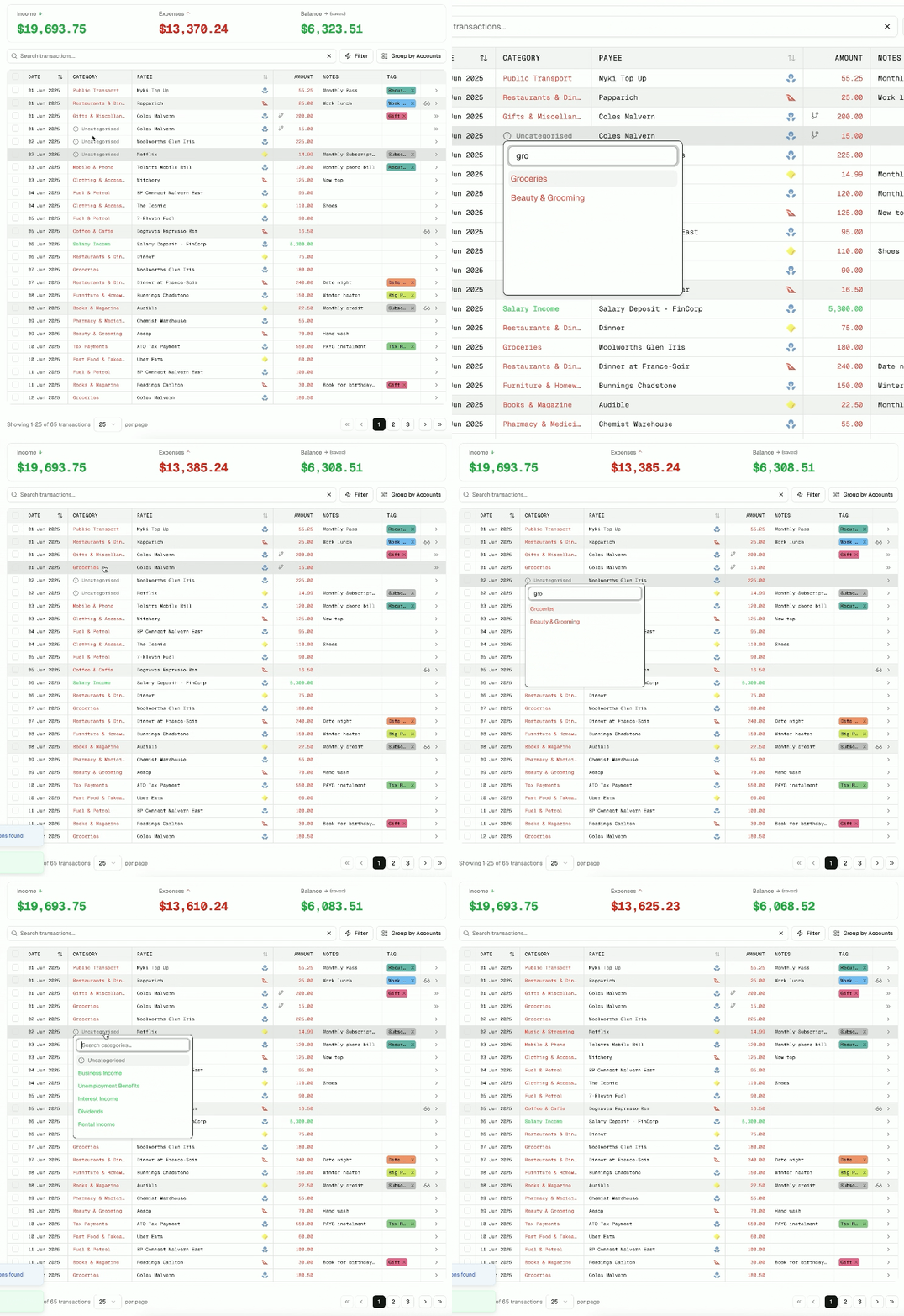
- Inline edit: Hover over the Category cell, click the dropdown, and choose or search for existing categories. You can type to filter long lists or create a new category if you have permission.
- Auto-categorisation: Moneytor suggests a category based on past rules (merchant name, description keywords). Click the lightbulb icon to accept the suggestion in one click.
- Tags: Click the Tags cell to multi-select from checkboxes or type to add a new tag (e.g. “Vacation”, “Reimbursed”). Your most recent tags appear at the top for convenience.
- Notes: Click the note icon to open a free-text field and add context, such as “Client lunch (invoice #123)”. Notes are searchable and appear in exports.
- Save changes: Edits are saved instantly, and a brief “Saved” toast confirms the update.
Splitting Transactions
Use the Split feature when one entry covers multiple categories (e.g., a supermarket shop with groceries and household items).
- Click the split icon on a row to open the Split Drawer.
- Add sub-transactions with their own Date, Amount, Category, and optional Tags/Notes.
- The totals auto-sum at the bottom; the “Save” button is disabled until the sub-totals equal the original transaction amount.
- On save, the original row is replaced by the individual lines for accurate budget tracking.
Working with Multiple Transactions (Bulk Actions)
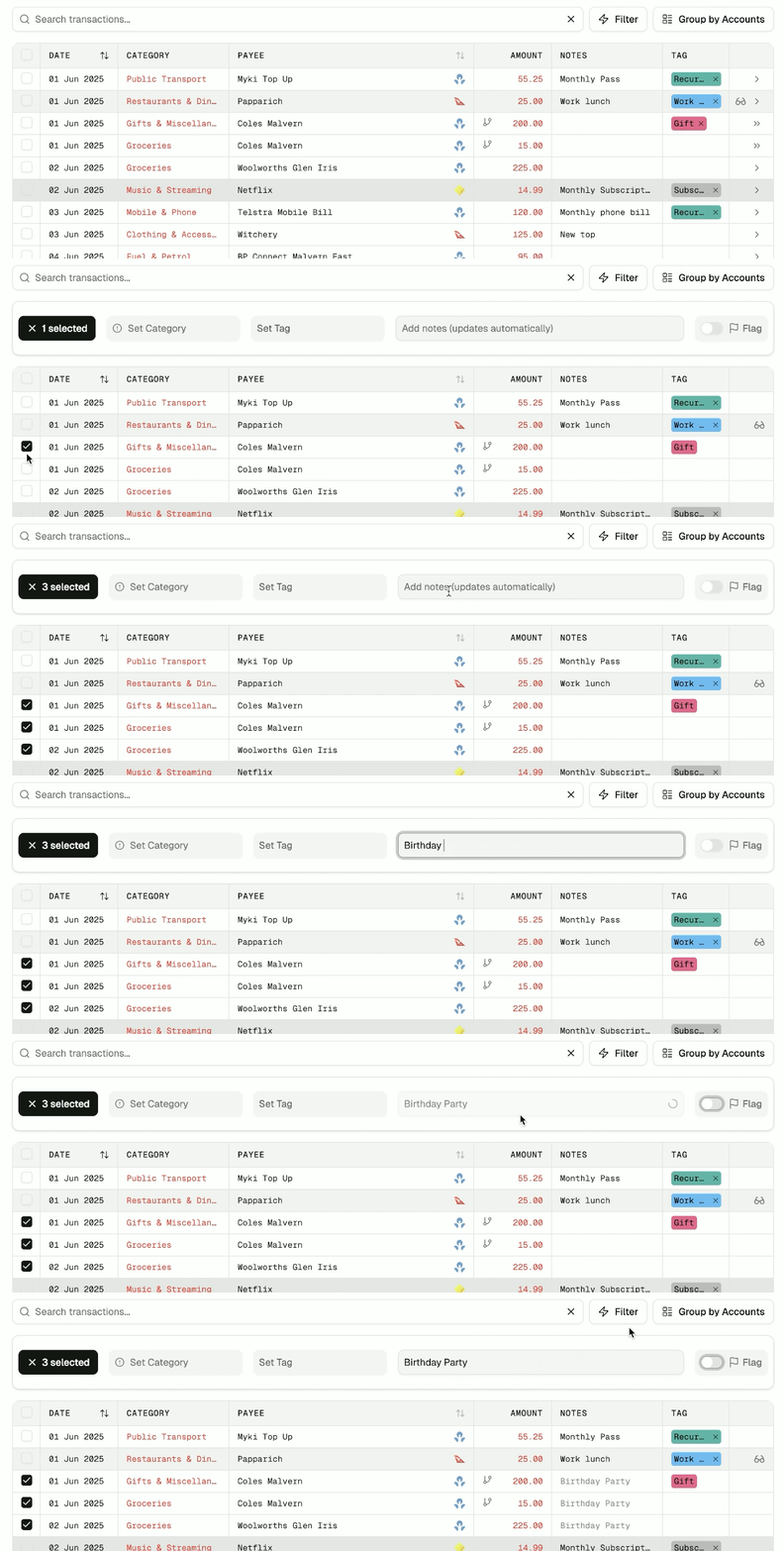
Select transactions with the checkbox on each row or click the header checkbox to select the entire page. A bulk toolbar will appear with these options:
- Bulk Categorise: Opens a dialog to choose one Category for all selected items.
- Bulk Tag/Remove Tags: Add new tags or remove existing ones in a single operation.
- Bulk Notes: Add new notes or remove existing ones in a single operation.
- Bulk Flag: Flag multiple transactions in a single operation.
Deleting Transactions
Single Delete
Click the trash icon on a transaction row, and a confirmation dialog will appear with the transaction details. Confirm to archive.
Tips & Best Practices
- Review regularly: Schedule a weekly transaction-review session to catch errors early and maintain budgeting momentum.
- Use bulk actions: After each import, quickly categorise and tag large batches to save time.
- Split wisely: Break down supermarket or department-store spends into groceries, household goods, fuel, etc., for more accurate budgets.
- Leverage reconciliation: Reconcile transactions monthly to ensure your records match your bank statements.
Enjoy the power and flexibility of Moneytor’s Transactions page—your go-to tool for precise, secure, and insightful financial record keeping.