
⬆️ Upload Transactions
The Upload Transactions feature in Moneytor allows you to quickly and securely import your bank transactions into the app, so you can analyse, categorise, and track your finances with ease. This guide covers the upload process, from file requirements to managing your upload history.
How to Upload Your Transactions
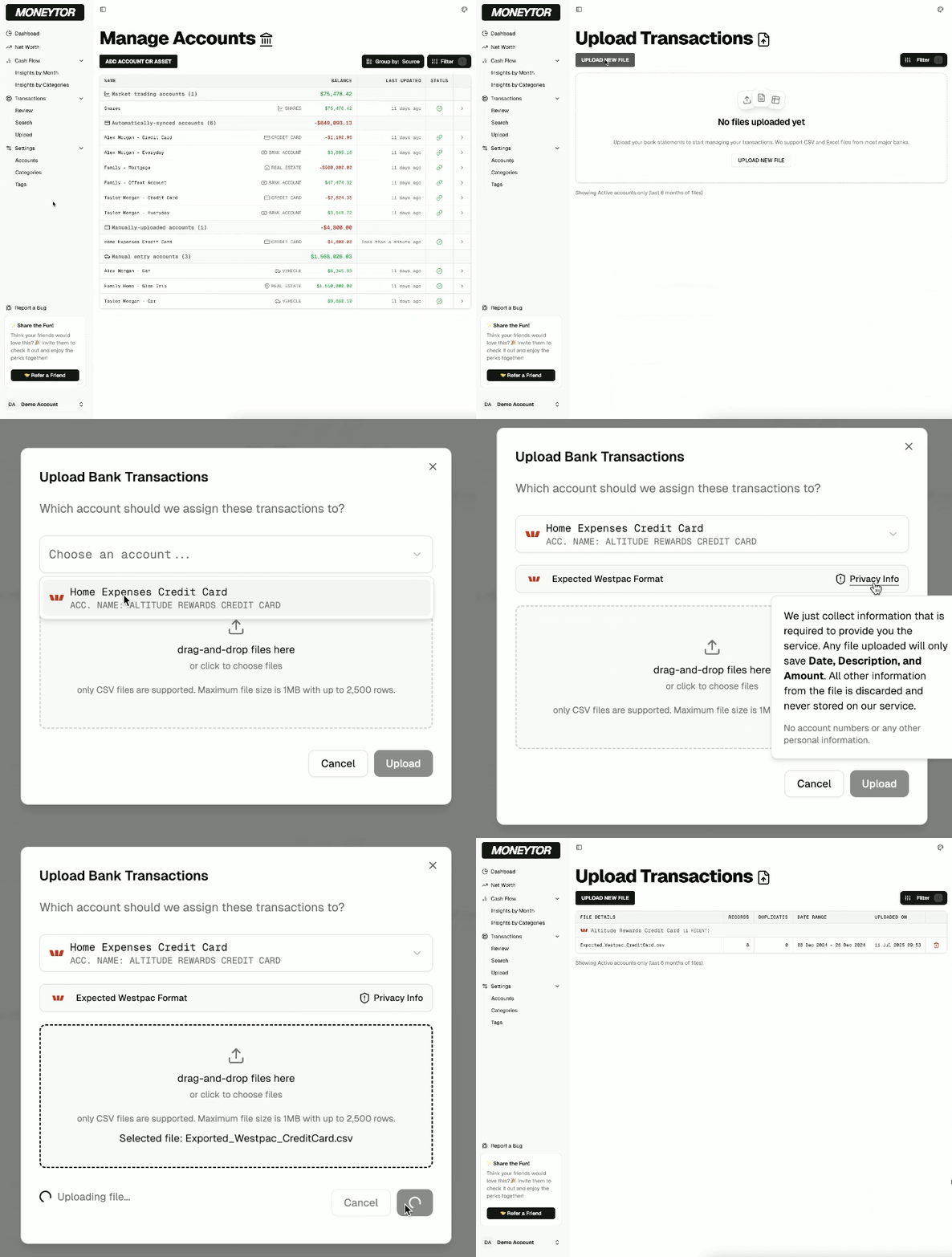
You can start a new upload at any time by clicking the “UPLOAD NEW FILE” button on the main “Upload” page.
File Requirements
Before you begin, please ensure your file meets the following criteria:
- File Type: Only CSV (Comma-Separated Values) files are supported.
- File Size: The maximum file size is 1MB.
- Row Limit: The file can contain a maximum of 2,500 rows of transactions.
Most Australian banks allow you to export your transaction history in CSV format from their internet banking portal.
Upload Steps
- Select an Account: In the pop-up window that appears, choose the Moneytor account that these transactions belong to.
- Choose Your File: Drag-and-drop your CSV file into the upload area, or click to browse and select it from your computer.
- Map Your Data (If Required): Moneytor will attempt to automatically recognise the format from major banks. If it’s an unrecognised format, you will be guided to manually match your file’s columns (e.g., Date, Description, Amount) to the correct fields in Moneytor.
- Upload and Finalise: Click Upload. Our system will then process the file, check for formatting errors, and detect any potential duplicate transactions to prevent them from being imported twice. On success, you’ll see a confirmation summary.
A Note on Security: For your privacy, your uploaded CSV file is encrypted during transit and is permanently deleted from our servers immediately after its contents have been successfully processed.
Managing Your Upload History
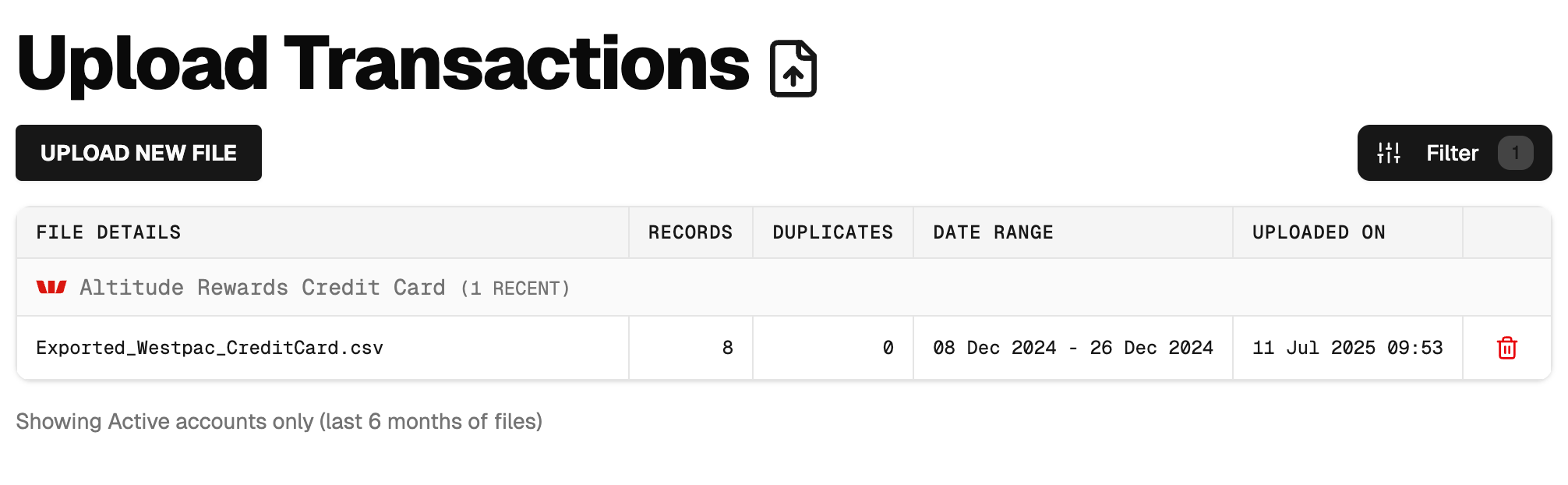
The main page shows a complete history of your uploaded files, grouped by account. For each file, you can see the file name, the number of records imported, how many duplicates were skipped, and the date it was uploaded.
To keep your records tidy, users with an Owner or Contributor role can delete an uploaded file’s history. Please note: Deleting a file from this list will also delete all the transactions that were imported from it. You will be asked to confirm this action.
Frequently Asked Questions
Q: What if my bank’s CSV format isn’t recognised? A: During the upload process, you will be guided to manually match the columns from your file to the fields in Moneytor. This allows you to import from any CSV file.
Q: Can I upload the same file twice? A: Yes, but you don’t need to worry. Moneytor’s duplicate detection will automatically identify and skip any transactions that have already been imported to prevent double-ups.
Q: Who can upload or delete files? A: Only users with “Owner” or “Contributor” roles in your household have permission to manage transaction uploads.