
📱 Moneytor Mobile App
The Moneytor mobile app is available for iOS and Android and gives you full access to your finances on the go. This guide covers everything you need to know to get started and make the most of the app.
Getting Started
Downloading the App
Moneytor is available on the App Store for iPhone and Google Play for Android. Search for “Moneytor” and install the free app.
Signing In
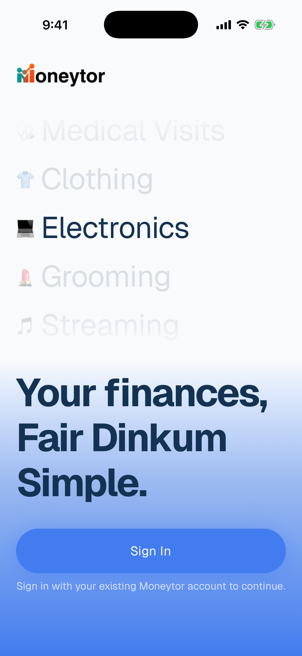
Tap “Sign In” on the welcome screen. This opens your browser where you enter your Moneytor account credentials. After successful login you’ll be redirected back to the app automatically.
First time? Your initial sync may take 60–120 seconds as all your financial data downloads to your device. You’ll see a progress indicator — just wait for it to complete before navigating away.
Setting Up Face ID / Touch ID
Face ID (or Touch ID) locks the app when it goes to the background, so no one can view your finances if they pick up your phone.
To enable:
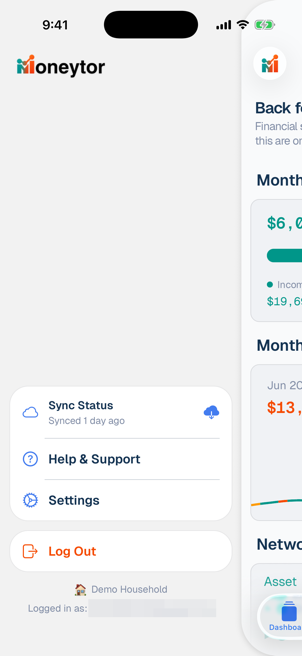
- Tap the Moneytor logo in the top left to open the main menu
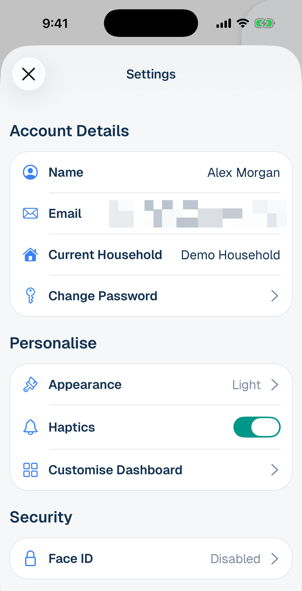
- Tap Settings
- Find the Security section
- Tap Face ID and toggle it ON
You’ll be prompted to authenticate once to confirm. After that, you’ll need Face ID or Touch ID every time you open the app.
To disable biometric lock, follow the same steps and toggle it OFF.
Syncing Your Data
Your data syncs automatically every 3 hours while the app is active. To sync manually:
- Pull down on any tab (Dashboard, Transactions, Categories, or Accounts) to refresh your local view. Use this if you just made a change (e.g. recategorised a transaction) and it isn’t showing yet.
- Or tap the Moneytor logo (top left) → tap the cloud download icon next to Sync Status
Manual sync is rate-limited to once per hour. After syncing, you’ll see the time of the last sync in the main menu.
Navigating the App
The app has five tabs at the bottom of the screen:
| Tab | What it shows |
|---|---|
| 📊 Dashboard | Your financial overview with customisable widgets |
| 💳 Accounts | All account balances and balance history |
| 📚 Categories | Spending breakdown by category |
| 📋 Transactions | Full transaction list with filters |
| 🔍 Search | Search across transactions, accounts, categories, and tags |
Tap the Moneytor logo in the top left at any time to open the main menu, where you can sync, access Settings, and log out.
Dashboard
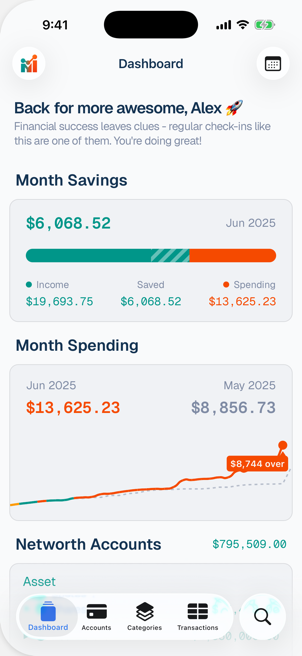
The Dashboard is your financial command centre — a single overview of your money for the selected month.
Widgets
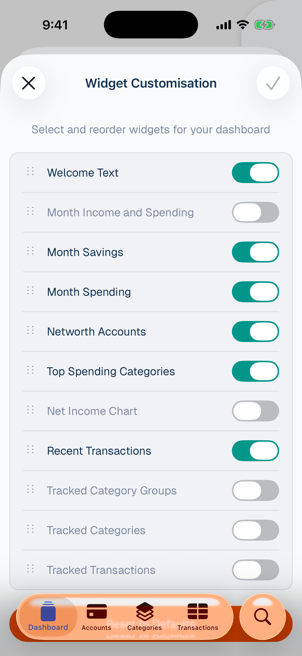
Widgets are the cards on your Dashboard, each showing a different financial insight. Available widgets:
- Welcome Text — A greeting and quick summary
- Income vs Spending — Side-by-side income and expense totals
- Month Overview — A summary bar showing income, expenses, and net
- Net Income — Your net cash flow for the month
- Accounts (Net Worth) — Total assets minus liabilities
- Recent Transactions — Your latest activity at a glance
- Top Spending Categories — Your biggest spend areas this month
- Monthly Spending Chart — A chart of spending trends over recent months
- Tracked Categories — Specific categories you’ve chosen to monitor
- Tracked Category Groups — Category group-level monitoring
- Tracked Transactions — Individual transactions you’ve flagged to watch
Customising Your Dashboard
- Go to Dashboard
- Scroll to the bottom and tap “Customise Dashboard”
- Toggle widgets ON or OFF to show or hide them
- Drag widgets to reorder them by priority
- Tap Save to apply (or Cancel to discard)
Changing the Month
- Tap the calendar icon in the top right of the Dashboard
- A scroll wheel picker appears with all available months
- Scroll up or down to select a month
- Tap “Select Month” to confirm
All widgets update immediately to show data for the selected month. The picker only shows months for which you have transaction data.
“No Data Available” on a Widget
If a widget shows “No data available”, it means there’s no financial activity for the selected month in that area. For example:
- Income/Spending widget shows “No data” if you have no transactions that month
- Top Categories widget shows “No data” if no categorised spending was recorded
Try switching to a different month using the calendar icon.
Transactions
Viewing Transactions
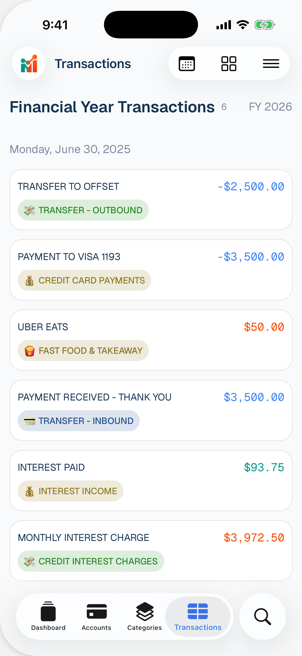
Tap the Transactions tab. Use the toolbar icons in the top right to refine your view:
Calendar icon — Filter by date range:
- Last 7 Days
- Last 30 Days
- This Month / Last Month
- Last 3 Months
- This/Last Calendar Year
- This/Last Financial Year (July–June)
Grid icon — Group by:
- Date (grouped by day)
- Month (grouped by month headers)
Filter icon — Filter by:
- Category or Category Group
- Tags
- Account
- Uncategorised only
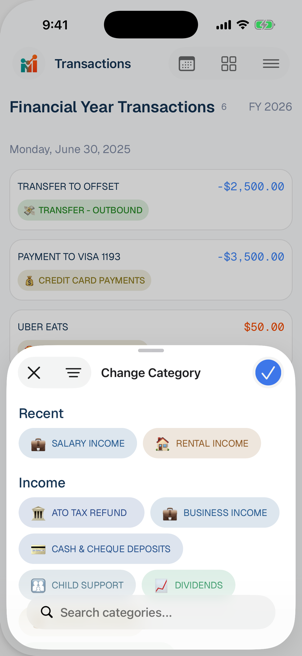
Changing a Transaction’s Category
There are two ways:
Method 1 — Swipe:
- Find the transaction and swipe left
- Tap the “Category” button that appears
- Select a category, then tap the checkmark to confirm
- (Or long-press a category to instantly select and close)
Method 2 — Transaction Details:
- Tap any transaction to open its details
- Tap the category row
- Select and confirm a new category
The category picker lets you:
- Search for categories by name
- Filter by Income, Expense, or Transfer type
- See recently used categories at the top for quick access
All widgets and totals update immediately after any category change.
Are Transactions Read-Only?
Yes — transactions come directly from your bank via Consumer Data Right (CDR) and cannot be edited or deleted. You can only change the category assigned to a transaction.
Smart Categorisation
Moneytor automatically assigns categories based on merchant names from your bank. Common examples:
"Woolworths"→ Groceries 🛒"Netflix"→ Entertainment 🎬"Shell"→ Transport 🚗
If an automatic category looks wrong, change it manually using either method above.
Categories
Viewing Spending by Category
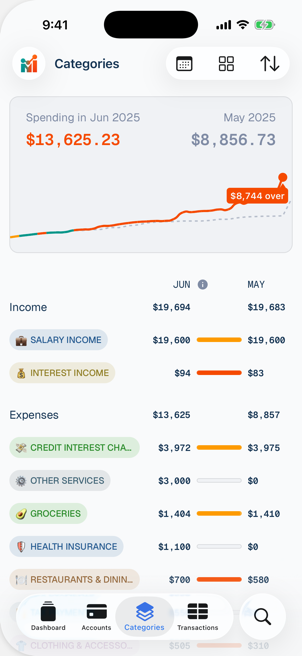
Tap the Categories tab to see:
- A ring chart showing your spending distribution for the month
- A category list with totals and a comparison to last month
- Emoji icons for every category
Use the toolbar to:
- Calendar icon — Change the month (same scroll wheel as Dashboard)
- Sort icon — Change sort order (by amount, alphabetically, etc.)
- View icon — Switch between Categories and Category Groups view
Tap any category to see its transactions and monthly spending trends over time.
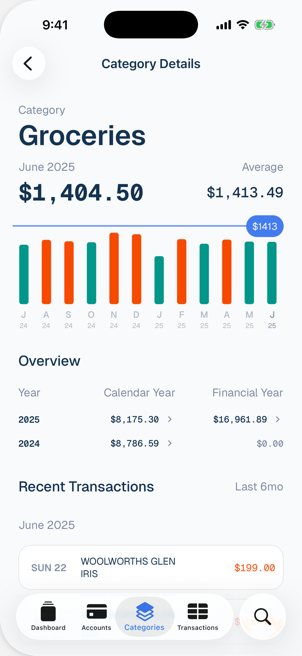
Category Emojis
Each category has a unique emoji for quick visual identification. A few examples:
🛒 Groceries · ☕ Coffee & Cafés · 🚗 Transport · 🏠 Housing · 💡 Utilities · 🎬 Entertainment · 💰 Salary Income · ✈️ Travel · 🏋️ Health & Fitness · 🍽️ Dining Out
Emojis are automatically assigned and cover 150+ categories.
Custom Categories
Custom category creation is not yet available — Moneytor uses a predefined set of ~150 categories covering most household and personal expenses. This is planned for a future release.
Accounts
Viewing Account Balances
Tap the Accounts tab to see:
- A summary showing total assets and liabilities
- A balance history chart — tap 1M, 3M, 6M, 1Y, or All to change the range
- A list of all accounts with current balances and bank logos
Use the toolbar grid icon to group accounts by:
- Type — Savings, Checking, Credit Card, etc.
- Bank — CBA, Westpac, ANZ, etc.
- Source — CDR (bank-connected) or Manual
Tap any account to view its recent transactions and detailed balance history.
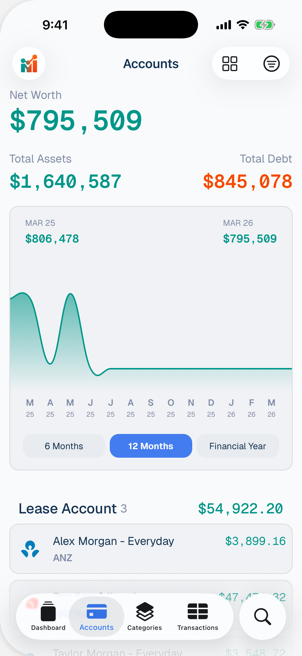
Net Worth
Net Worth is shown on the Dashboard’s Accounts widget:
Net Worth = Total Assets − Total LiabilitiesAssets: Savings accounts, transaction accounts Liabilities: Credit card balances, loans
The Accounts tab shows this breakdown in the summary section at the top.
Adding or Removing Bank Accounts
Account connections are managed through your bank’s CDR (Consumer Data Right) data-sharing settings, not inside the Moneytor app. To add or remove accounts:
- Visit your bank’s website or app
- Go to CDR settings or Data sharing
- Manage which accounts share data with Moneytor
- Pull to refresh in Moneytor to sync the changes
Search
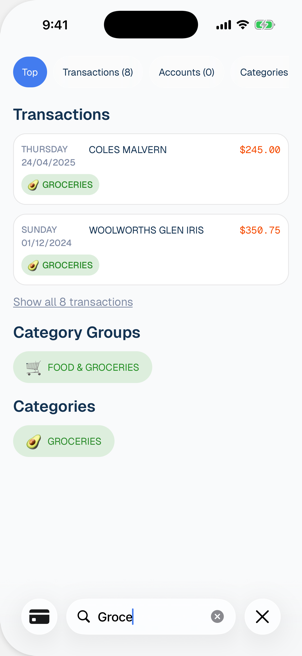
Tap the Search tab. Type any keyword in the search bar to find matches across:
- Transaction descriptions
- Category names
- Account names
- Tags you’ve applied
Results are organised into tabs:
| Tab | What it shows |
|---|---|
| Top | Best overall matches across all types |
| Transactions | Matching transactions |
| Accounts | Matching accounts |
| Categories | Matching categories |
| Tags | Matching tags |
Tap any result to view its detail screen. You can also swipe left on a transaction result to change its category directly from search without opening the detail screen.
Recent searches are saved so you can quickly repeat them.
Settings
Open Settings by tapping the Moneytor logo (top left) → tap Settings.
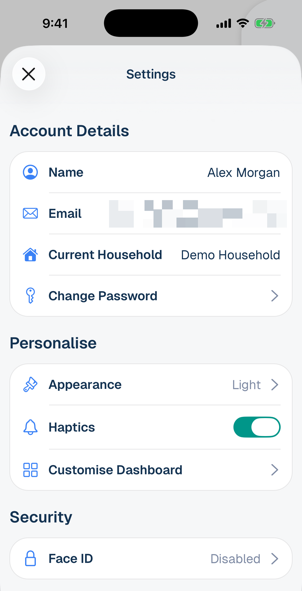
Appearance
In the Personalise section, tap Appearance and choose:
- Light — Always light mode
- Dark — Always dark mode
- System — Follows your device’s system setting
Haptic Feedback
In the Personalise section, toggle Haptics ON or OFF. Haptics give tactile feedback when you tap buttons, toggle switches, and use gestures like swipe-to-categorise.
Changing Your Password
In the Account Details section, tap Change Password. You’ll be redirected to your browser to update your password securely, then returned to the app.
Logging Out
- Tap the Moneytor logo (top left) to open the main menu
- Tap Log Out and confirm
What happens when you log out:
- All local data is deleted from your device
- You’ll need to sign in again
- Your next login will re-download all data (initial sync ~60–120 seconds)
- Your Face ID preference is preserved
Terms, Privacy Policy & About
In the About section in Settings, tap:
- Terms of Service — opens in your browser
- Privacy Policy — opens in your browser
- Report a Bug — sends a report with automatic diagnostic info attached
- Send Feedback — share feature requests or general feedback
Gestures & Tips
| Gesture | What it does |
|---|---|
| Swipe left on a transaction | Reveals the Category action button |
| Long-press a category (in picker) | Instantly selects it and closes the picker |
| Pull to refresh | Refreshes local data on any tab |
| Tap logo (top left) | Opens the main menu |
Tip: Long-pressing a category is much faster than tapping it then tapping the checkmark — great when you’re quickly categorising a batch of transactions.
Offline Mode
Moneytor stores all your data locally on your device, so it works without internet. When you’re offline you can still:
- ✅ View all transactions
- ✅ Search transactions
- ✅ View account balances (as of last sync)
- ✅ Browse categories and spending charts
What requires internet:
- ❌ Syncing new transactions from your bank
- ❌ Signing in for the first time (or after logging out)
When you reconnect, the app syncs automatically in the background if it has been more than 3 hours since the last sync.
Troubleshooting
“Sync failed”
- Check your internet connection
- Open the main menu and tap the sync icon to retry
- If the issue persists, log out and log back in
“Session expired”
- Your login session has expired — tap Sign In to re-authenticate
- Your data re-downloads automatically on next login
“Biometric authentication failed”
- Try again (up to 3 attempts)
- After repeated failures, use your device passcode instead
- If Face ID / Touch ID keeps failing, go to Settings → Security and toggle it off then on again
Transaction not appearing
- New transactions from your bank can take 24–48 hours to arrive via CDR
- Pull to refresh to reload your local data
- Open the main menu and trigger a manual sync to fetch the latest from the server
Category change not showing
- Changes should reflect immediately across all widgets
- If not, pull to refresh on the current screen
App is slow or unresponsive
- Close and reopen the app
- If the problem persists, log out and back in — this refreshes everything and re-downloads your data
Privacy & Security
How is my data stored?
- All transaction and account data is stored locally on your device, encrypted and private
- Your login credentials are secured by your device’s built-in security (iOS or Android)
- No financial data is shared with third parties
Can someone see my data if they borrow my phone?
- Enable Face ID / Touch ID in Settings → Security to require biometric authentication whenever the app is opened or resumed
- When locked, no one can access your financial data without your biometric or device passcode
What data does Moneytor access?
- Transaction history from your connected accounts
- Account balances
- Account names and types
- Your profile (name and email)
What Moneytor does NOT have access to:
- Your bank login credentials — these are handled directly by your bank and never pass through Moneytor
- Payment or transfer capabilities — Moneytor is read-only
- Accounts you haven’t explicitly shared via CDR
Is Moneytor compliant with Australian privacy law?
- Yes. Moneytor uses the Consumer Data Right (CDR) framework, which is regulated by the ACCC. Your data sharing consent is managed directly with your bank.
Need More Help?
Email us at support@moneytor.com.au — we read every message and aim to respond within one business day.
You can also report bugs or send feedback directly in the app via Settings → Report a Bug or Settings → Send Feedback. Bug reports automatically include diagnostic info so we can investigate quickly.
Not sure if something is a bug or just how the app works? Either way, reach out — there’s no wrong reason to contact us.