
📈 Net Worth Dashboard Guide
The Net Worth Dashboard in Moneytor gives you a clear, real-time view of your household’s financial position by tracking all your assets and debt in one place. This guide explains how Net Worth is calculated, how to manage your accounts, and how to get the most out of this powerful feature.
Understanding Your Net Worth
Net Worth is the total value of everything you own (your assets) minus everything you owe (your debt). The dashboard calculates this for you with a simple formula:
Net Worth = Total Assets – Total Debt
- Assets: These are accounts with a positive value, like bank accounts, investments, property, or vehicles.
- Debt: These are accounts with a negative value, such as mortgages, loans, or credit card balances.
Every account you add in Moneytor is automatically included in your Net Worth calculation. The dashboard updates in real time as your balances change, giving you a constantly up-to-date picture of your financial health.
Navigating the Net Worth Dashboard
You can access the Net Worth Dashboard from the main sidebar. The primary view shows you:
- Current Net Worth: Your latest net worth value, displayed prominently at the top.
- Assets & Debt Breakdown: Totals for your assets and debt, broken down by account type.
- Net Worth Over Time Chart: A chart to visualize your progress and spot trends.
- Account List: A detailed list of all the accounts that contribute to your net worth, showing their current balances and recent changes.

Adding and Updating Account Balances
1. Add a New Account
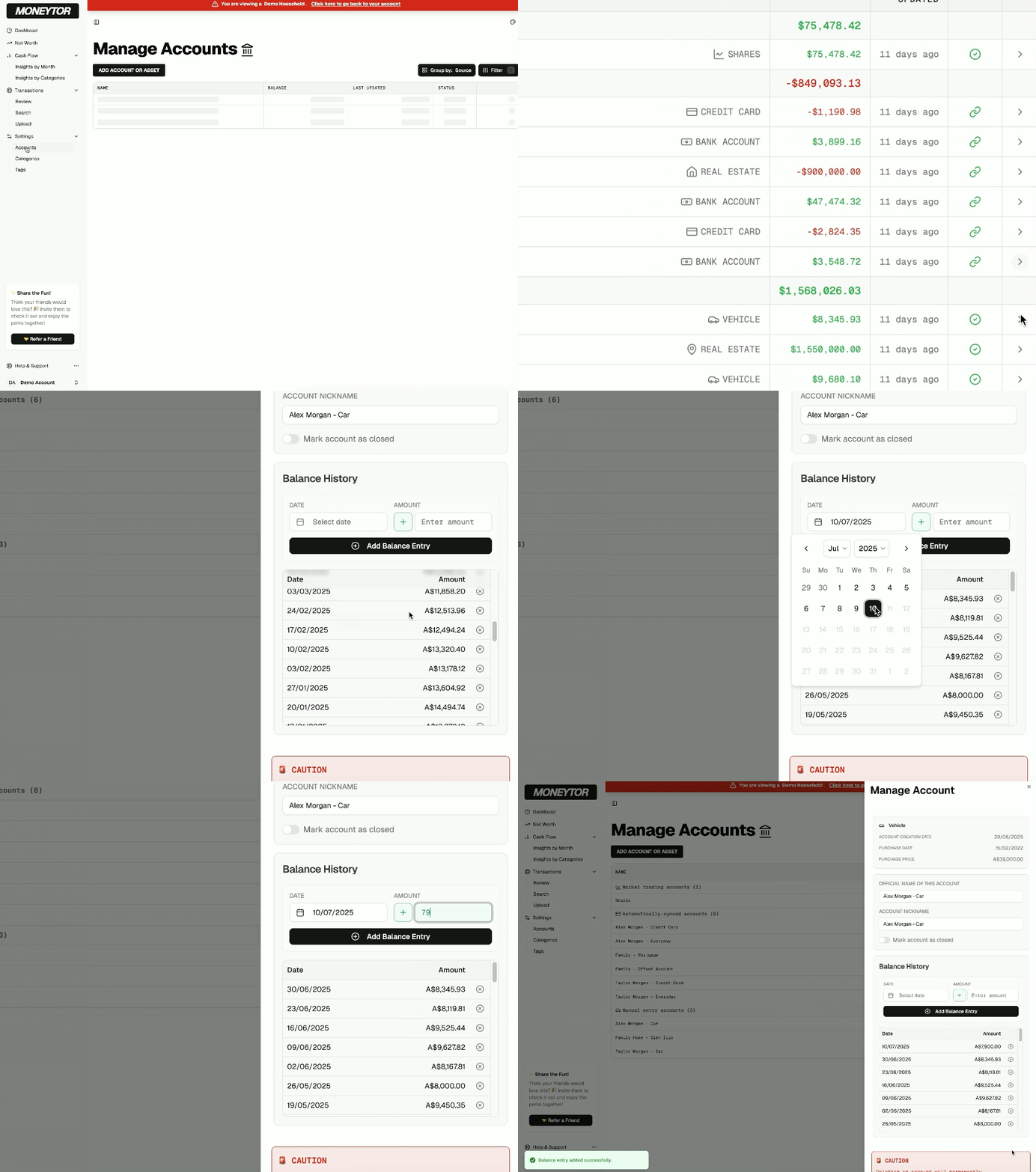
To add a new account, go to Settings > Accounts. Choose the account type (Asset or Debt), enter the details, and set the opening balance. For accounts connected via CDR, balances will update automatically.
2. Update Balances for Manual Accounts
For manual accounts like property or vehicles, you can update the balance directly from the Net Worth Dashboard.
- Find your account in the list.
- Click the “Add Balance” or “Edit Balance” button.
- Enter the new balance and the date (historical balances are supported).
- Save your changes to see your net worth chart update instantly.
3. View Balance History
Click on any account in the list to see a full history of its balance changes over time.
Understanding the Net Worth Chart
The main chart shows how your net worth, assets, and debt have changed over time.
- Hover over any point on the chart to see the exact values for that date.
- The chart uses all historical balance entries for your accounts. If you add a balance for an earlier date, the chart will redraw itself to accurately reflect that history.
Tips for Getting the Most Out of Net Worth
- Add All Your Accounts: For a complete and accurate picture, include every asset and debt.
- Update Balances Regularly: For manual accounts, try to add new balances monthly or after any significant change in value.
- Review Trends: Use the chart to understand the story of your financial journey—spotting growth, setbacks, and patterns.
- Archive Closed Accounts: To keep your dashboard tidy, you can archive accounts you no longer use. They will be hidden from the main list but still included in your historical calculations.
Frequently Asked Questions
Q: Why is my net worth not updating? A: Check to see if the balances on your manual accounts are current. Forgetting to update an account’s value is the most common reason for a static net worth.
Q: Can I see my net worth for a specific date in the past? A: Yes. The chart lets you hover over any point in time to see your net worth based on the recorded balances for that date.
Q: Are archived accounts included in my net worth? A: Yes, the value of archived accounts is included in your historical calculations up to the date they were archived. This ensures your past net worth remains accurate.
Q: Who can see my net worth? A: Only users with “Owner” or “Contributor” roles in your household can view or edit net worth data.